Workspace
A Workspace in ZeuZ Test Studio is a dedicated environment for organizing project context, resources, and collaborators required for AI-assisted testing and test development.
Why it matters / Use Cases:
- Centralized Test Project: Keeps the testing work and related resources organized in one dedicated environment.
- Repository Management: Connects the test repository to keep source code, branches, and generated tests synchronized.
- Knowledge Management: Allows users to analyze connected knowledge sources and use relevant project context for testing.
- Local Project Integration: Enables users to link a local project repository with the workspace.
- Team Collaboration: Allows team members to access the workspace and collaborate on testing activities.
- Test Ownership: Helps teams manage access and ownership of testing resources within the project.
Prerequisites
- Workspace: An existing workspace should be available, or the user should have permission to create a new one.
- Test Repository: A test repository should be available if the project requires source code and automated test files.
- Local Project Access: Access to the local project or repository is required if users want to link it to the workspace.
- Team Member Access: The required users should have appropriate access if collaboration is needed.
Features
Create a Workspace
-
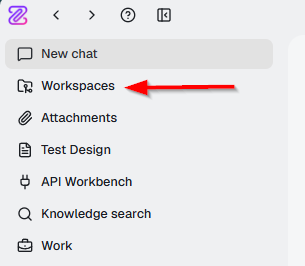
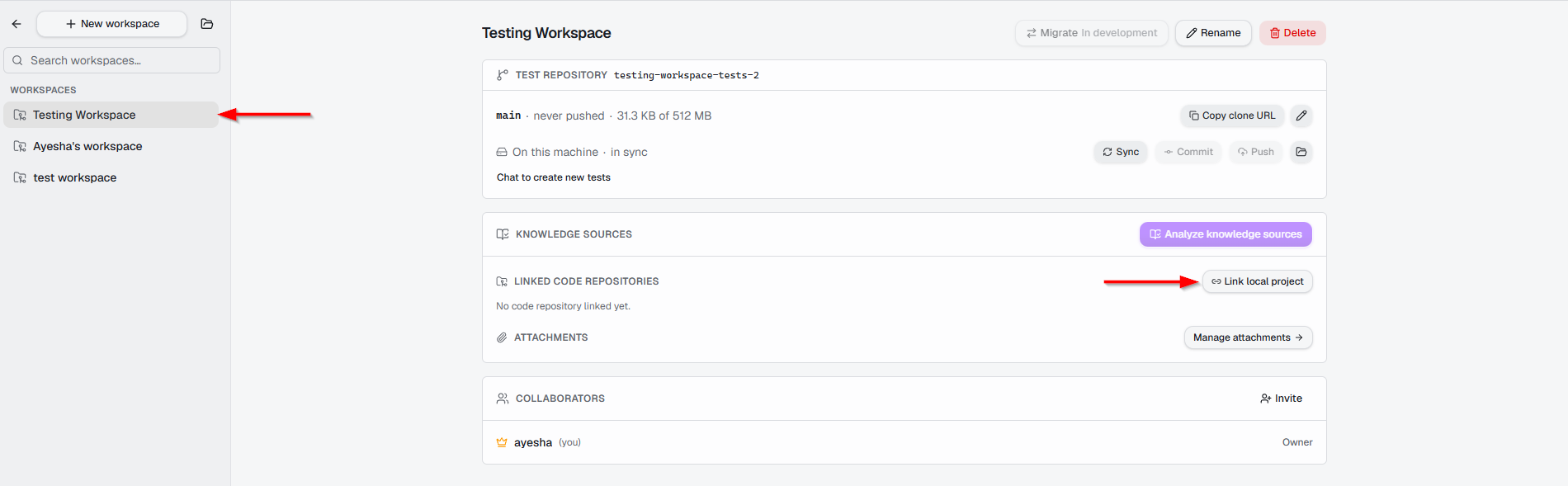
From the left-side panel, click the Workspaces option to navigate to the Workspace page.
-
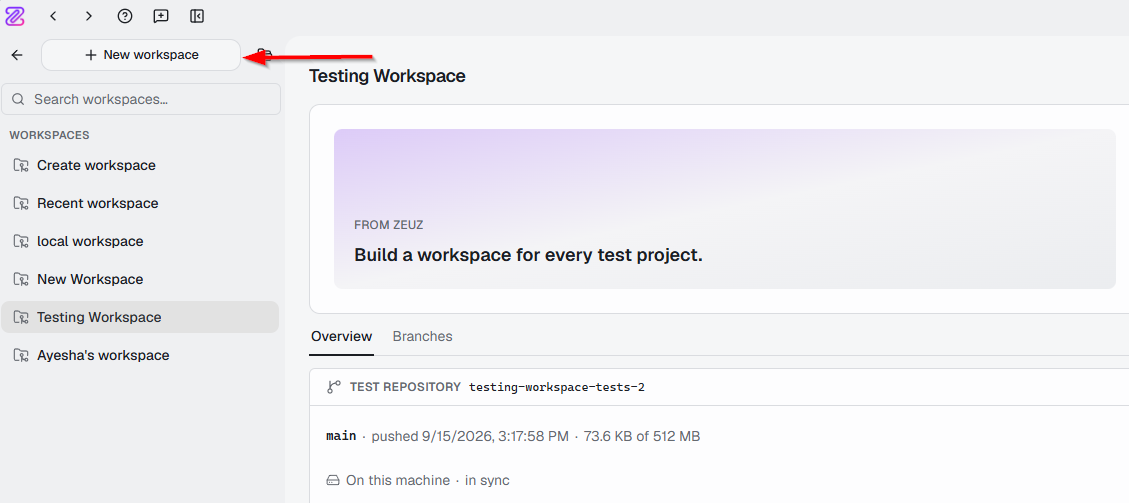
After navigating to the Workspaces page, users can create a new workspace by selecting + New workspace from the left-side panel.
-
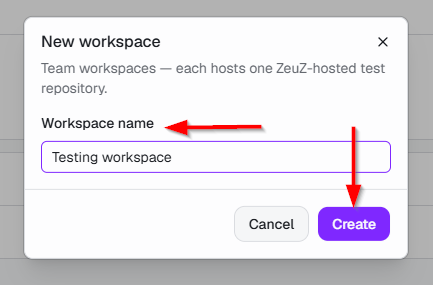
To create a new workspace, enter a name for the workspace and then click the Create button.
Top Section of the Workspace Page
-
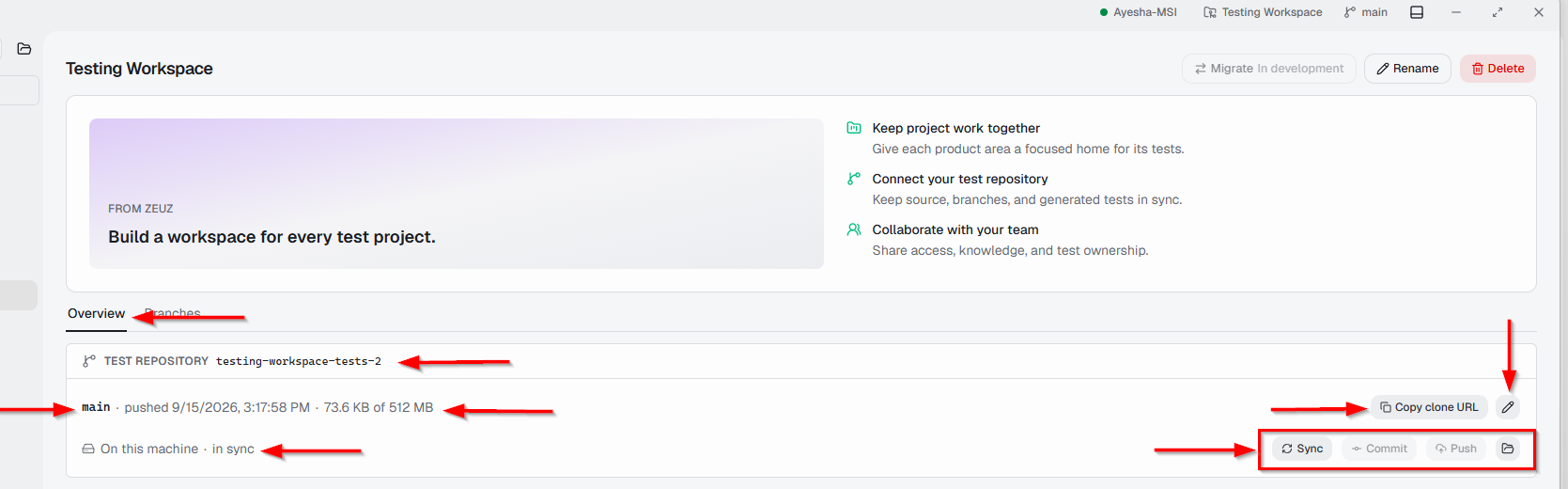
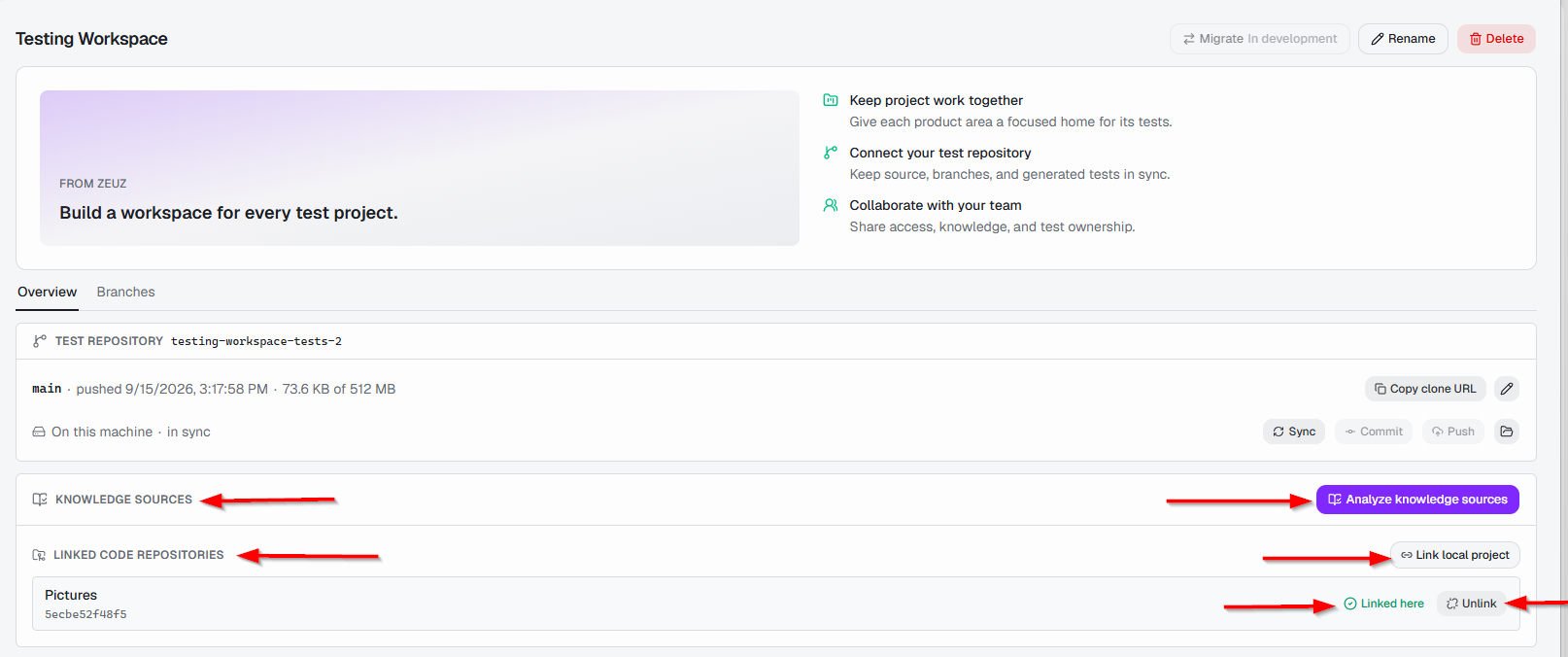
The top section of the Workspace page displays the Workspace name and provides options to manage the workspace. It also highlights the main purposes of the workspace:
- Keep project work together: Provides a focused environment for organizing tests for a product area.
- Connect your test repository: Allows users to connect a test repository and keep source code, branches, and generated tests synchronized.
- Collaborate with your team: Supports sharing workspace access, knowledge, and test ownership with team members.
- Rename: Allows users to change the workspace name.
- Delete: Allows users to delete the workspace.
- Migrate in development: Displays a migration option that is currently under development.

Workspace Page Tabs
- The Workspace page contains two tabs: Overview and Branches.
Overview
-
It displays the main workspace information, including the connected test repository, knowledge sources, linked code repositories, and collaborators.
Test Repository
- The Test Repository section displays the repository connected to the workspace and provides repository management options.
- Repository Name: Displays the name of the connected test repository.
- Branch: A branch is a separate version of a repository that allows users to work on changes independently without affecting the main codebase. It shows the current branch, such as main.
- Repository Status: Displays the latest push date and the repository storage usage.
- Sync Status: Indicates whether the repository on the machine is synchronized with the remote repository.
- Sync: Updates the local repository with the latest changes.
- Commit: Allows users to commit changes to the repository.
- Push: Allows users to push committed changes to the remote repository.
- Copy Clone URL: Copies the repository's clone URL.
- Edit: Allows users to edit the repository configuration.
- Folder Option: Provides access to the repository files or folder.
Knowledge Sources and Linked Code Repositories
- The Knowledge Sources section allows users to manage project sources that can provide additional context for Test Studio.
- Analyze Knowledge Sources: Allows users to analyze the available knowledge sources and make relevant project information available for AI-assisted testing.
- Linked Code Repositories: Displays the local project or repository linked to the workspace.
- Link Local Project: Allows users to connect a local project to the workspace.
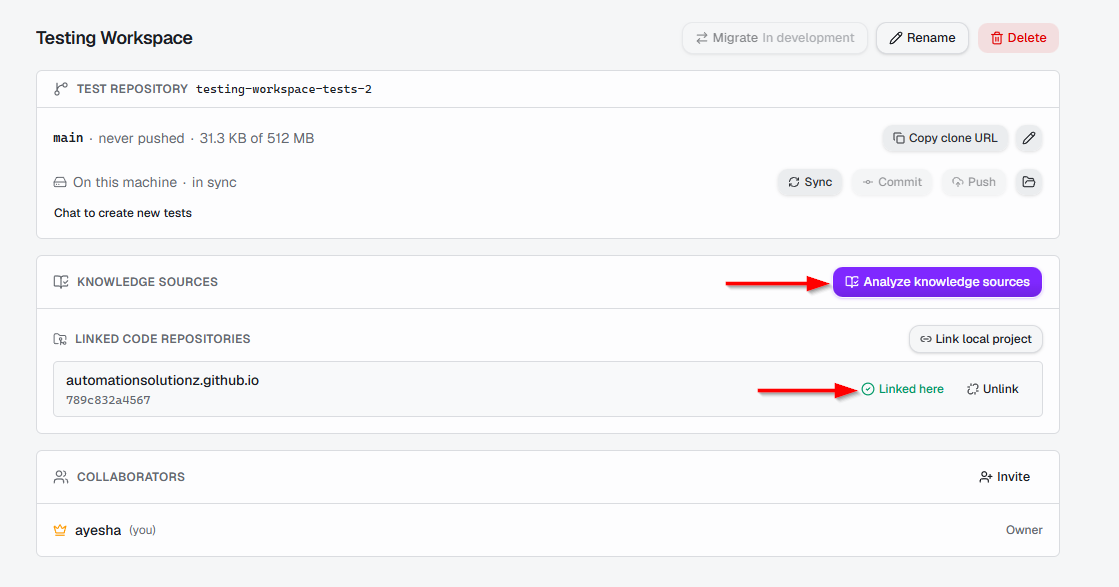
- Linked here: Indicates that the displayed project is currently linked to the workspace.
- Unlink: Allows users to remove the linked project from the workspace.
How to Link a Local Project to a Workspace?
- To link a local project to a workspace, first click on the Link local project button.
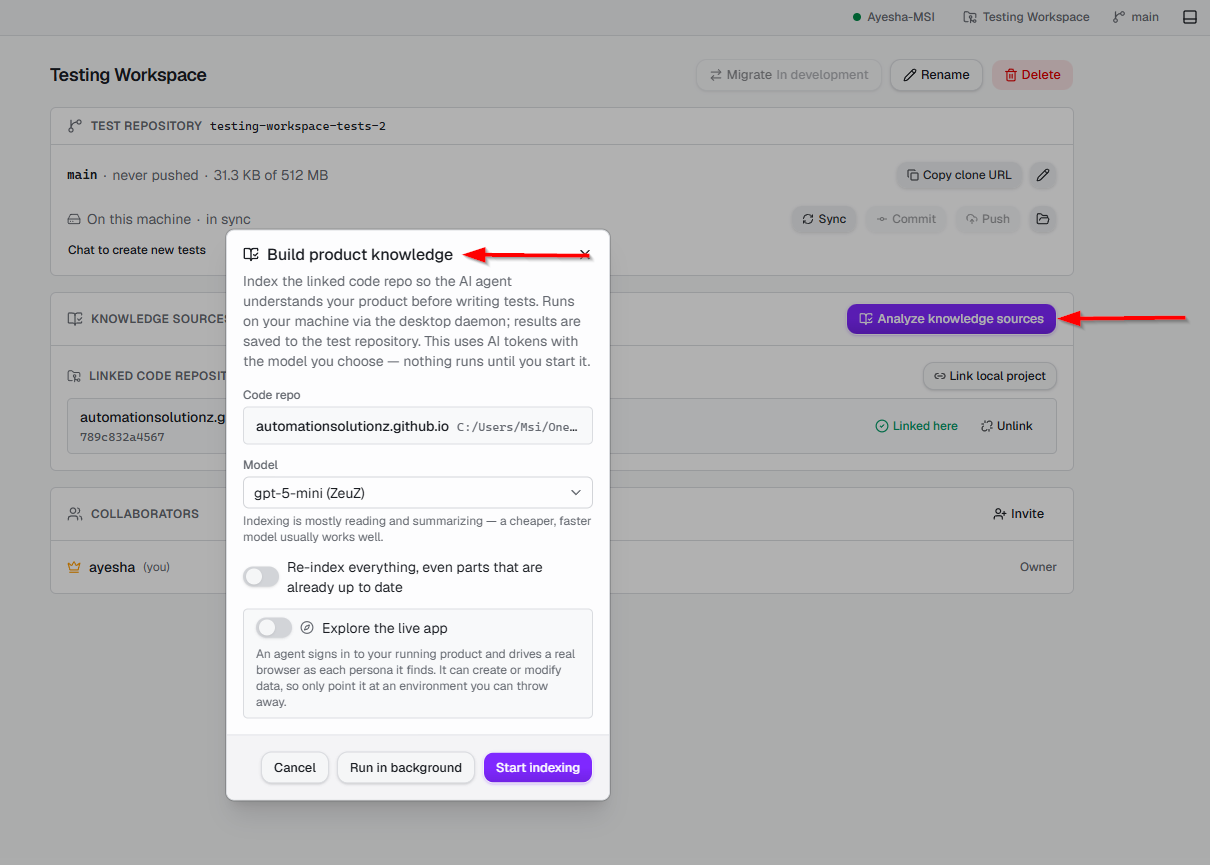
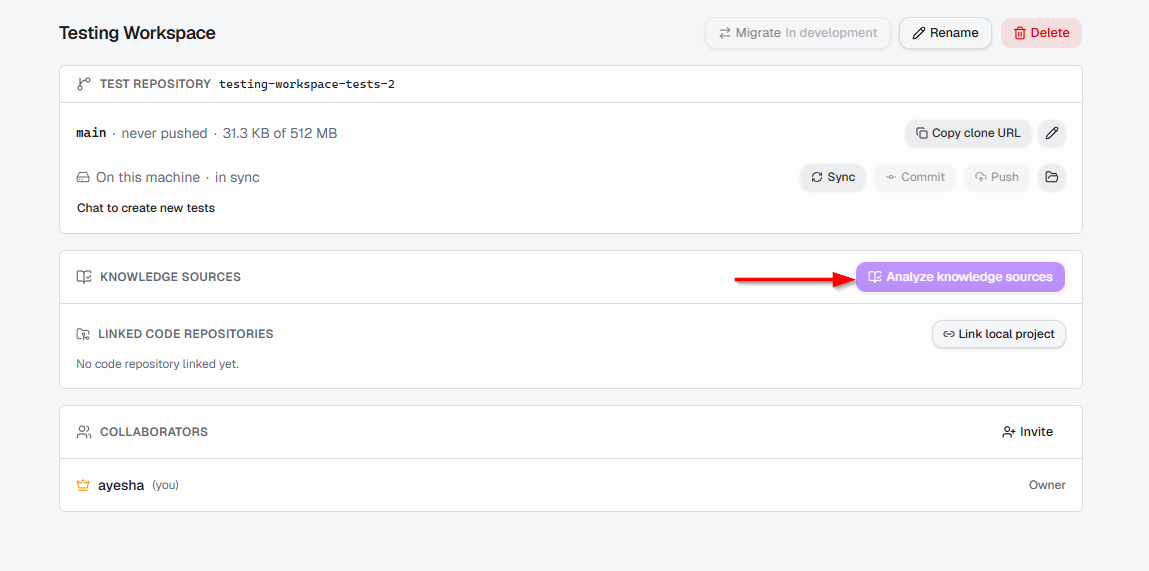
- After linking a local project to a workspace, users can analyze the knowledge source. This process scans the entire repository and uses AI to build a structured summary of the project, similar to a blueprint, helping Test Studio understand the application's structure and relevant context.
 note
noteThe “Analyze Knowledge Sources” button remains unavailable until a local project is linked.
Collaborators
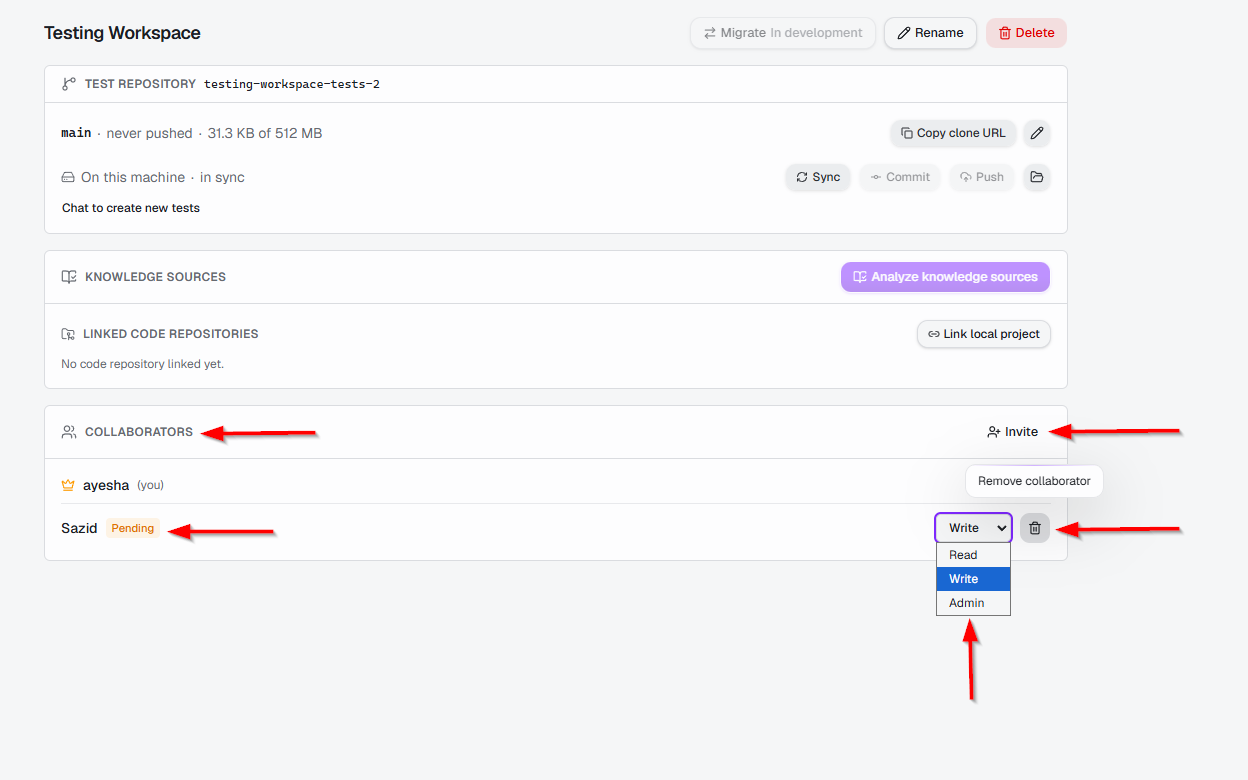
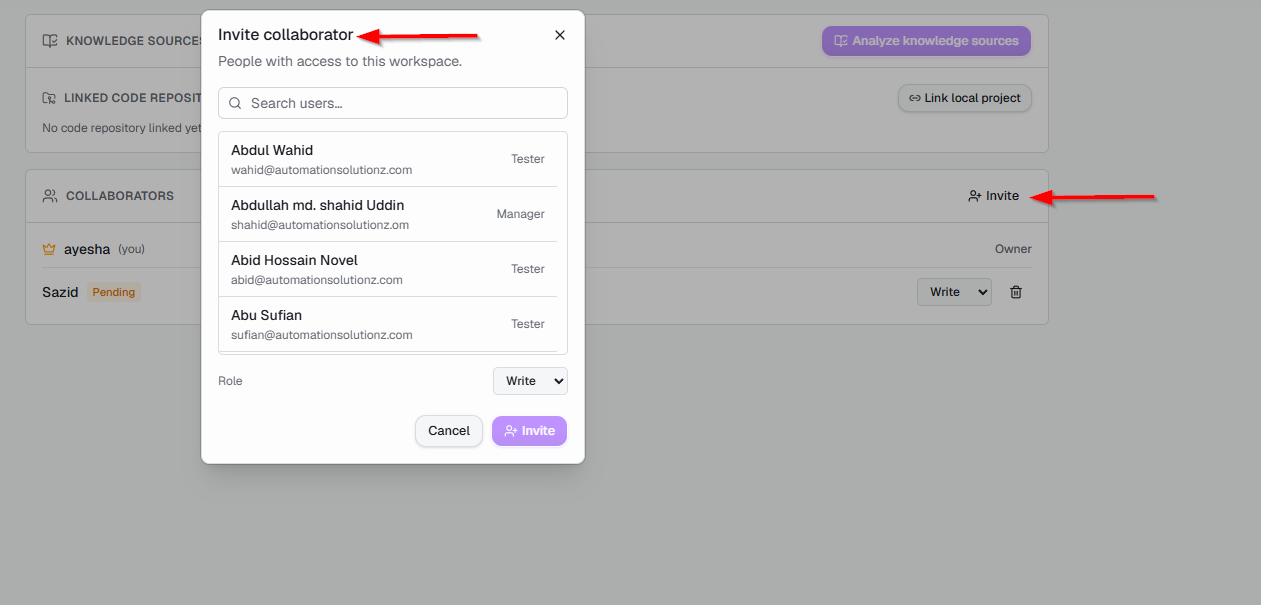
- The Collaborators option allows users to invite other users to the workspace and assign them specific permissions. Click Invite to add users from the relevant project. When inviting a user, select the required permission level:
- Read: Allows the user to view the workspace and its content.
- Write: Allows the user to view the workspace and create test cases.
- Admin: Provides full access to the workspace.
- After selecting the required permission, click Invite to send the invitation. The invited user is initially shown as Pending. Once the user accepts the invitation, the status is updated to indicate that the invitation has been accepted.
- The Remove collaborator option allows workspace administrators to remove a collaborator from the workspace, removing the user’s access and assigned permissions.
 note
noteUsers with access to the specific workspace can also be invited using the Search users option.
- The Test Repository section displays the repository connected to the workspace and provides repository management options.
Branches
-
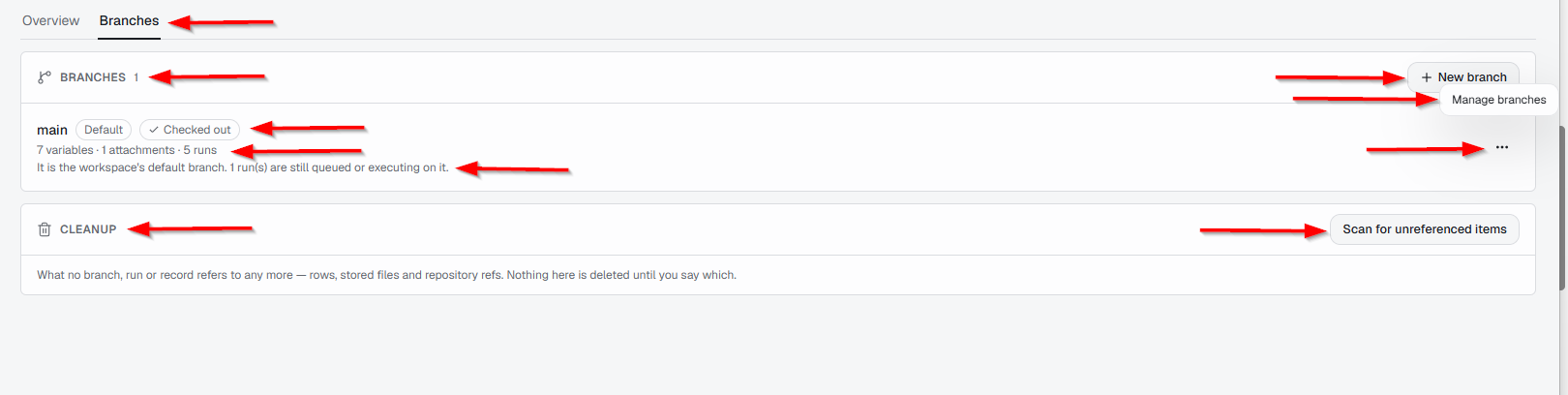
Branches are separate versions of the connected test repository that allow users to manage and work with different sets of test code and changes independently.
-
It displays the total number of branches available in the workspace and provides options to create and manage them.

-
New branch: Allows users to create a new branch.
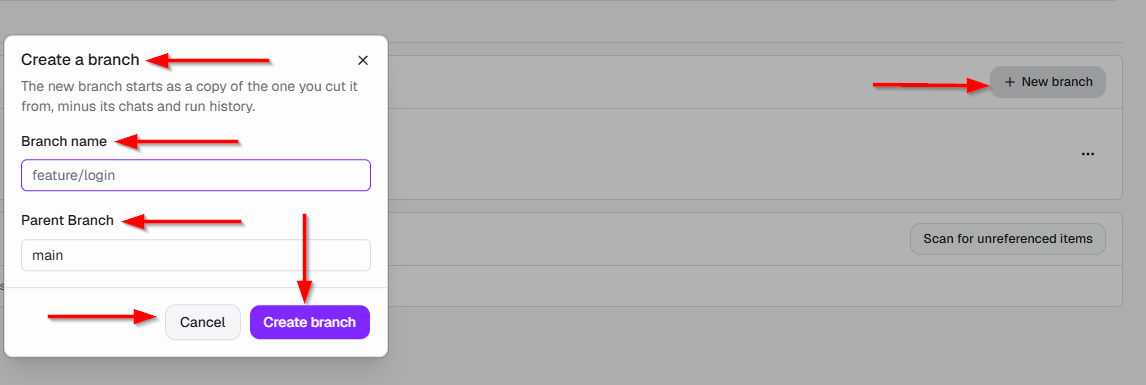
- To create a new branch, click the + New branch button.
- After clicking the + New branch button, "Create a Branch" window appears.
- The Create a branch window allows users to create a new branch based on an existing parent branch. It contains the following fields and options:
- Branch name: Enter a name for the new branch, such as feature/login.
- Parent Branch: Specifies the existing branch from which the new branch will be created.
- Cancel: Closes the window without creating a branch.
- Create branch: Creates the new branch using the specified branch name and parent branch.
-
main: Displays the available branch. It is marked as Default and Checked out, indicating that it is the workspace’s default branch and is currently selected.
-
Branch Information: Displays the number of variables, attachments, and runs associated with the branch.
-
Run Status: Indicates that some runs on the workspace's default branch are still queued or currently executing.
-
Manage branches: The three-dot menu provides additional branch management options, including the following:
- Rename: It allows users to change the name of an existing branch without changing its associated test data or history.
- Delete: It allows users to remove an existing branch from the workspace when it is no longer needed.
-
Cleanup: Allows users to scan for unreferenced items, such as rows, stored files, and repository references. The items are not deleted automatically; users must review and specify what should be removed.
-
Scan for unreferenced items: Starts a scan to identify items that are no longer referenced by any branch, run, or record.
 note
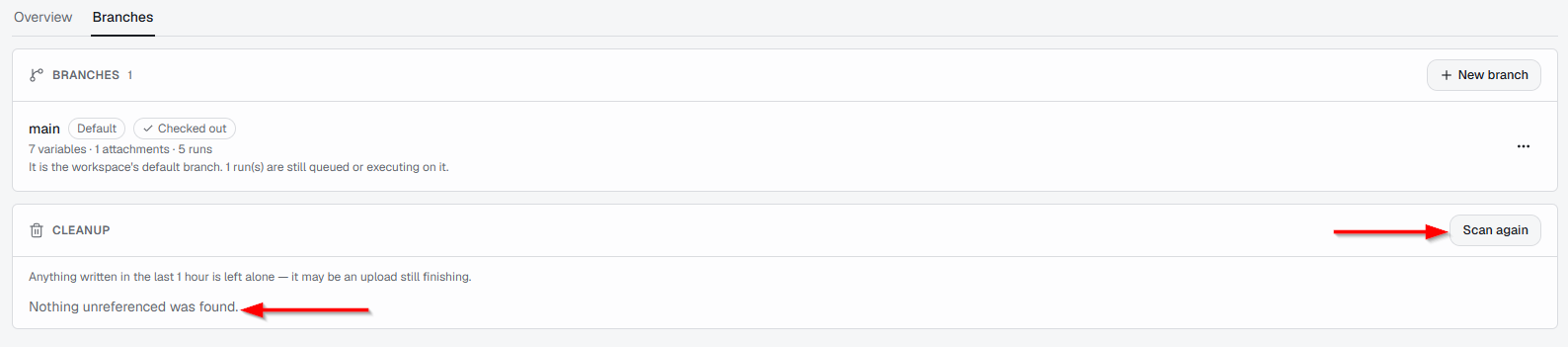
noteIf no unreferenced items are found, the Scan again button appears on the right side.
FAQs / Troubleshooting
What is a workspace in Test Studio?
A workspace is a dedicated environment for organizing project context, resources, repositories, and collaborators for testing activities.
Why is the Analyze Knowledge Sources option unavailable?
The option may remain unavailable until a local project or repository is linked to the workspace.
Can I rename or delete a branch?
Yes. The three-dot menu for a branch provides options to Rename or Delete the branch.
What does “No unreferenced items found” mean during cleanup?
It means the scan did not find any items that are currently unreferenced by the workspace branches or related records.
What should I do if I cannot find my workspace?
Check the Workspaces section in the left-side panel and use the available search option to locate the required workspace. Also verify that the user has the necessary workspace access.
Changelog
- A dedicated workspace for creating, refining, comparing, and versioning AI-generated UI mockups [202605]